CTF Walkthrough
Description:
A walkthrough of how to solve the capture-the-flag challenge made by Anvay and Yash
⚠️⚠️⚠️ SPOILER ALERT: SOLUTION WILL BE SHOWN BELOW ⚠️⚠️⚠️
Step 1: Extract hashes from the SAM Database
The SAM database is the file that the Windows operating system uses to store usernames and match them to passwords
Extraction Way #1:
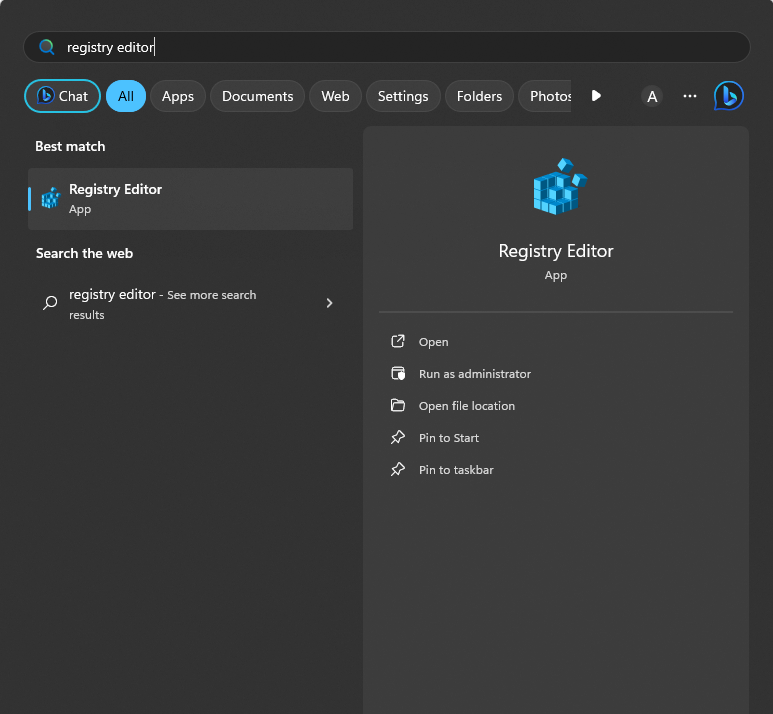
The first way you can extract the passwords from the SAM database is through the registry editor. Make sure to be safe when navigating the Registry Editor. A single thing messed up in here means that your computer could risk its last use.
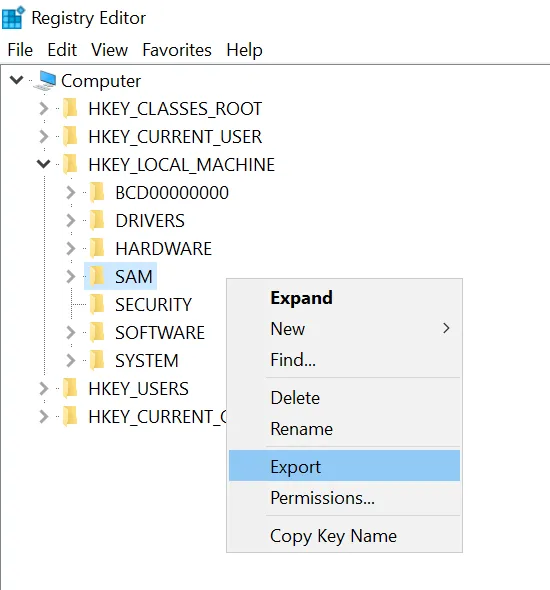
After you have done this, navigate to HKEY_LOCAL_MACHINE and then SAM. Then, right-click and Export the key.
Extraction Way #2:
Another way that you can extract the SAM database is through PowerShell. PowerShell is a task automation and configuration management program from Microsoft.
To do this, first open PowerShell by pressing the Windows key and typing in PowerShell. After opening PowerShell, run the following commands:
reg save HKLM\sam ./sam.save
reg save HKLM\system ./system.save
If you used this way to save the SAM database, now you’re ready for Step 2!
Step 2: Move all saved SAM databases to a Kali Linux image
Note: To understand what Kali is and how to download it and open it in VMWare, refer to the Intro to CTF post on the Hacks page for week 2.
Once you have Kali installed and opened, run the following:
impacket-secretsdump -sam sam.save -system system.save LOCAL
The impacket-secretsdump command is part of the Impacket library, which is a collection of Python classes for working with network protocols.
Specifically, this command is used for extracting password hashes from a Windows system.
- impacket-secretsdump: This is the command-line utility provided by Impacket for performing various operations related to credential extraction.
- -sam sam.save: This flag specifies the path to the Security Account Manager (SAM) database file (sam.save in this case).
- -system system.save: This flag specifies the path to the system registry hive file (system.save in this case).
- LOCAL: This argument specifies the target; in this case, it indicates that the command should be executed locally on the system.
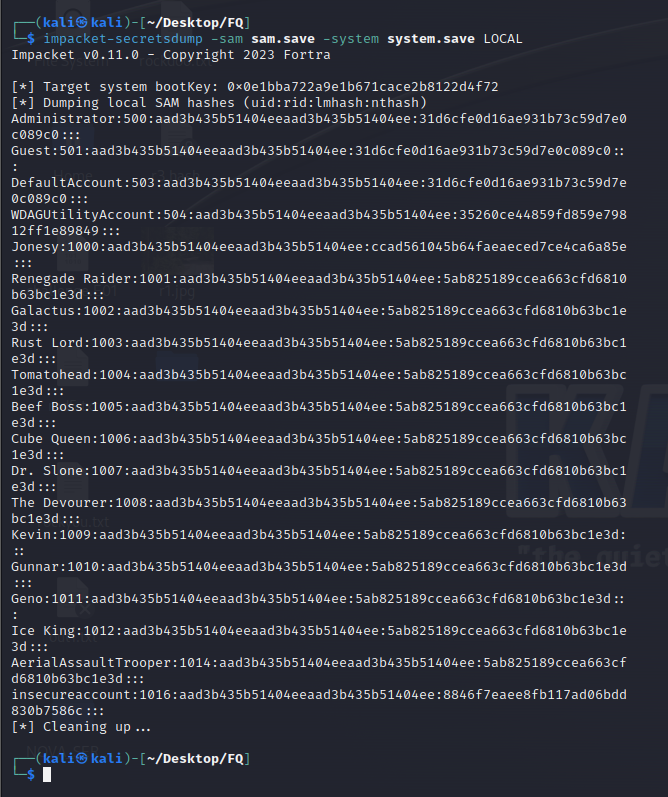
So, when you run this command, it reads the SAM and system registry hive files from the specified paths (sam.save and system.save), extracts password hashes, and outputs the results.
Step 3: Crack the password hashes using hashcat
Using the impacket command, we have extracted the password hashes from the SAM database. Now, we need to crack these passwords.
To do this, run the following command:
hashcat -m 1000 hash.txt /rockyou.txt --show
The hashcat command is a powerful and popular password-cracking tool that supports various hashing algorithms.
Here's a breakdown of the provided command:
- -m 1000: This option specifies the hash mode to use. In this case, it indicates mode 1000, which corresponds to the NTLM hashing algorithm commonly used in Windows environments.
- hash.txt: This is the name of the file containing the target hashes.
- /rockyou.txt: This is the path to a wordlist file, in this case, rockyou.txt.
- --show: This option instructs hashcat to display the cracked passwords if it successfully finds matches in the provided wordlist.

So, the overall purpose of this command is to use hashcat to attempt to crack password hashes (in NTLM format) stored in the hash.txt file using the passwords from the rockyou.txt wordlist. If successful, the tool will display the cracked passwords.
Congratulations! Using hashcat, you just cracked the password of insecureaccount. Seems like they kept their password as “password”.